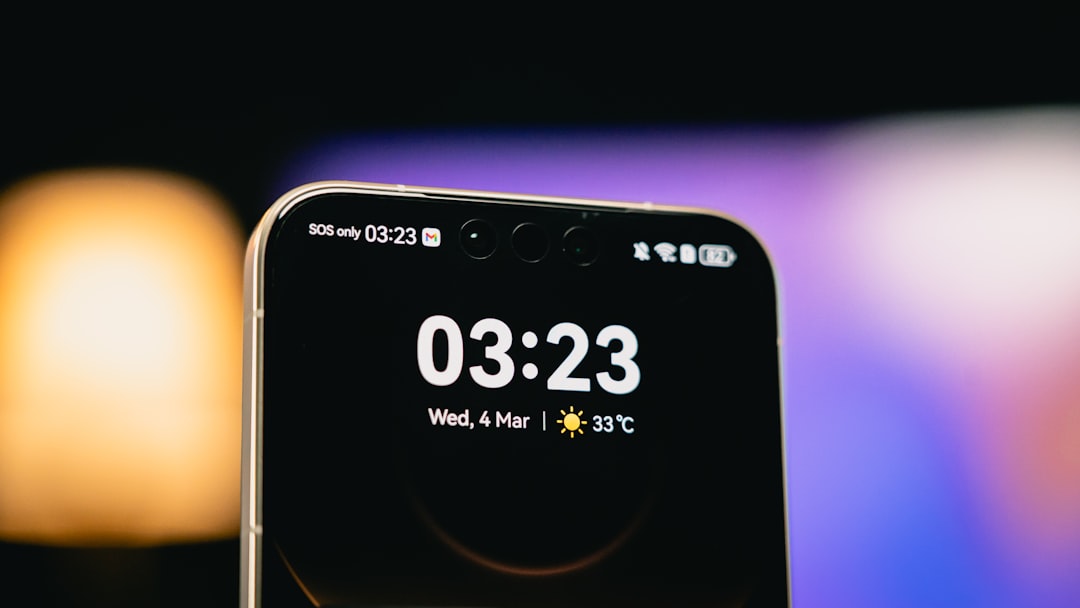
Why Push Notifications Matter
Push notifications are the single most effective re-engagement tool available to mobile app publishers. The numbers are stark: apps with push notifications enabled see up to 88 percent higher engagement compared to apps without them. For content-driven apps — blogs, news sites, magazines — push notifications transform passive readers into active, returning users.
When you publish a new post in WordPress, a push notification can reach every reader who has opted in within minutes. No algorithm decides whether they see it. No social media platform takes a cut of the traffic. The message goes directly from your app to your reader's lock screen.
But setting up push notifications for a WordPress mobile app involves multiple moving parts: a delivery service, a client-side SDK, server-side triggers, and platform-specific configuration for both iOS and Android. This guide walks through every piece of the stack.
The Technical Stack
A push notification system for a WordPress app requires three components working together:
- Delivery service: Firebase Cloud Messaging (FCM) handles the actual delivery of notifications to devices on both iOS and Android. It is free, reliable, and the industry standard.
- Client SDK: The Expo Notifications API (or react-native-push-notification for bare workflows) handles permission requests, token registration, and notification display on the device.
- Server trigger: A WordPress hook — typically on the
publish_postaction — fires when new content is published and sends the notification payload to FCM.
How the Flow Works
Understanding the end-to-end flow helps you debug issues when they arise. Here is what happens from the moment you hit "Publish" in WordPress to the moment a reader sees the notification:
- WordPress fires the publish hook: When a post transitions to "published" status, WordPress triggers the
transition_post_statusorpublish_postaction hook. - Your plugin sends to FCM: A custom function hooked into that action constructs a notification payload (title, body, post ID, featured image URL) and sends it to the Firebase Cloud Messaging API via an HTTP POST request.
- FCM routes to devices: Firebase determines which devices should receive the notification based on topic subscriptions or device tokens, then routes the message through Apple Push Notification service (APNs) for iOS devices and directly to Android devices.
- The app receives and displays: The Expo Notifications handler receives the payload and either displays it as a system notification (if the app is backgrounded) or triggers an in-app alert (if the app is in the foreground).
- Reader taps, app opens: When the reader taps the notification, the app opens and deep-links directly to the relevant post using the post ID from the payload.
Setting Up Firebase
Firebase Cloud Messaging is the backbone of the notification delivery system. Here is how to set it up from scratch:
Create a Firebase Project
Go to the Firebase Console, create a new project, and give it a name that matches your app. Disable Google Analytics if you do not need it — it simplifies the setup. Once the project is created, you will see your project dashboard.
Add iOS and Android Apps
In the Firebase project settings, add both an iOS and Android app. For iOS, you will need your bundle identifier (e.g., com.yoursite.app). For Android, you will need your package name. Firebase will generate configuration files for each platform:
- iOS: Download
GoogleService-Info.plistand place it in your Expo project root. Expo's config plugin will handle embedding it in the build. - Android: Download
google-services.jsonand place it in your project root. Similarly, Expo handles the rest.
Generate Server Credentials
For your WordPress backend to send notifications, it needs a server key. In Firebase Console, go to Project Settings, then Cloud Messaging tab. Generate a new server key or use the existing one. This key will be stored securely in your WordPress installation — either as a constant in wp-config.php or as an encrypted option in the database.
Expo Notifications Setup
On the app side, the expo-notifications package handles everything from requesting permissions to displaying notifications. Here is the setup process:
Requesting Permissions
iOS requires explicit user permission before an app can send notifications. Android 13 and later also requires runtime permission. Your app should request notification permissions at an appropriate moment — not immediately on first launch, but after the user has had a chance to see value in the app. A common pattern is to prompt after the user reads their second or third article.
Registering Push Tokens
Once permission is granted, the app receives a unique push token that identifies this specific device. This token needs to be sent to your backend and stored. Every time your WordPress site sends a notification, it uses these stored tokens (or FCM topics, which are more scalable) to target the right devices.
Push tokens can change — when a user reinstalls the app, updates the OS, or restores from a backup. Your app should re-register its token on every launch and your backend should handle token updates gracefully.
Handling Received Notifications
Expo provides two handlers: one for notifications received while the app is in the foreground, and one for when the user taps a notification. The foreground handler lets you decide whether to show the notification as a banner or handle it silently. The tap handler is where you implement deep linking — extracting the post ID from the notification data and navigating to the post detail screen.
Triggering Notifications from WordPress
The WordPress side needs a function that fires when content is published and sends the notification payload to Firebase. Here is what that involves:
The Publish Hook
Hook into transition_post_status and check that the new status is "publish" and the old status is not "publish" (to avoid re-sending on post updates). Extract the post title, excerpt, featured image URL, and post ID to construct the notification payload.
Sending to FCM
Construct an HTTP POST request to https://fcm.googleapis.com/fcm/send with your server key in the Authorization header. The body includes the notification content (title, body, image) and data payload (post ID for deep linking). Send to a topic like /topics/all_posts or to specific category topics for segmented delivery.
Segmentation and Topics
Not every reader wants every notification. Topic-based subscriptions let readers choose what they receive:
- Category-based topics: Subscribe users to topics matching WordPress categories — technology, sports, local news. When a post is published in a category, only subscribers to that topic receive the notification.
- Breaking news topic: A special topic for urgent, breaking stories that goes to everyone who opted in for breaking alerts.
- User preferences screen: Build a settings screen in the app where readers toggle which categories they want notifications for. The app subscribes and unsubscribes from FCM topics accordingly.
Topics are far more scalable than individual device tokens. Instead of sending to thousands of tokens individually, you send once to a topic and Firebase handles the fan-out.
Best Practices
Push notifications are powerful but easy to misuse. Follow these guidelines to maximize engagement without driving unsubscribes:
- Do not over-notify: Sending more than 3 to 5 notifications per day causes notification fatigue. Reserve push for genuinely important or interesting content.
- Use rich notifications: Include the featured image alongside the title and excerpt. Rich notifications have significantly higher tap-through rates than text-only notifications.
- Deep link to the post: When a reader taps the notification, they should land directly on the article — not the home screen. This reduces friction and improves the experience.
- Respect quiet hours: Avoid sending non-breaking notifications during nighttime hours in your readers' time zones.
- Track engagement: Monitor notification open rates, which topics perform best, and whether notifications correlate with increased session time.
- Test on both platforms: iOS and Android handle notifications differently in terms of display, grouping, and sound. Test thoroughly on both.
The DIY Complexity
If the steps above sound involved, that is because they are. Here is what you are managing when you build push notifications yourself:
- Firebase project configuration for both iOS and Android, including APNs certificates for iOS (which expire and need renewal).
- Token management — storing tokens, handling updates, cleaning up stale tokens from uninstalled apps.
- Error handling — FCM can return various error codes (invalid token, unregistered device, rate limiting). Your WordPress code needs to handle each case.
- Platform differences — iOS notifications require APNs configuration through Firebase, Android notifications have channels and importance levels, and the display behavior differs between platforms.
- Ongoing maintenance — Firebase APIs evolve, Expo updates their notifications API, and Apple and Google change their push notification requirements periodically.
Push notifications add immense value to your app — but the implementation complexity is real. Every piece needs to work together, and debugging cross-platform notification issues is not trivial.
The Managed Alternative
If the technical overhead of building and maintaining a push notification system is more than you want to take on, managed services handle it entirely.
NativePress Cloud includes push notifications out of the box. When you publish a post in WordPress, the notification goes out automatically to all subscribed readers. No Firebase configuration, no token management, no custom WordPress hooks. The entire pipeline — from WordPress publish action to notification on the reader's screen — is handled for you.
Category-based segmentation, rich notifications with images, deep linking to posts, and App Store submission are all included. You focus on creating content. NativePress Cloud handles the delivery.
For developers who want full control but a head start on implementation, NativePress Dev includes the notification infrastructure in the codebase. You get the Expo notification handlers, the WordPress plugin hooks, and the Firebase integration — all pre-built and ready to customize.
The Bottom Line
Push notifications are not optional for a successful mobile app. They are the primary mechanism for driving return visits, delivering timely content, and building a direct relationship with your readers that does not depend on social media algorithms or search engine rankings.
The technical implementation involves Firebase, Expo Notifications, WordPress hooks, and platform-specific configuration. It is achievable for developers willing to invest the time, but the ongoing maintenance burden is real.
Whether you build it yourself with NativePress Dev or let NativePress Cloud handle everything, make push notifications a non-negotiable feature of your WordPress app. Your engagement metrics will thank you.